Chat Below for Twitch
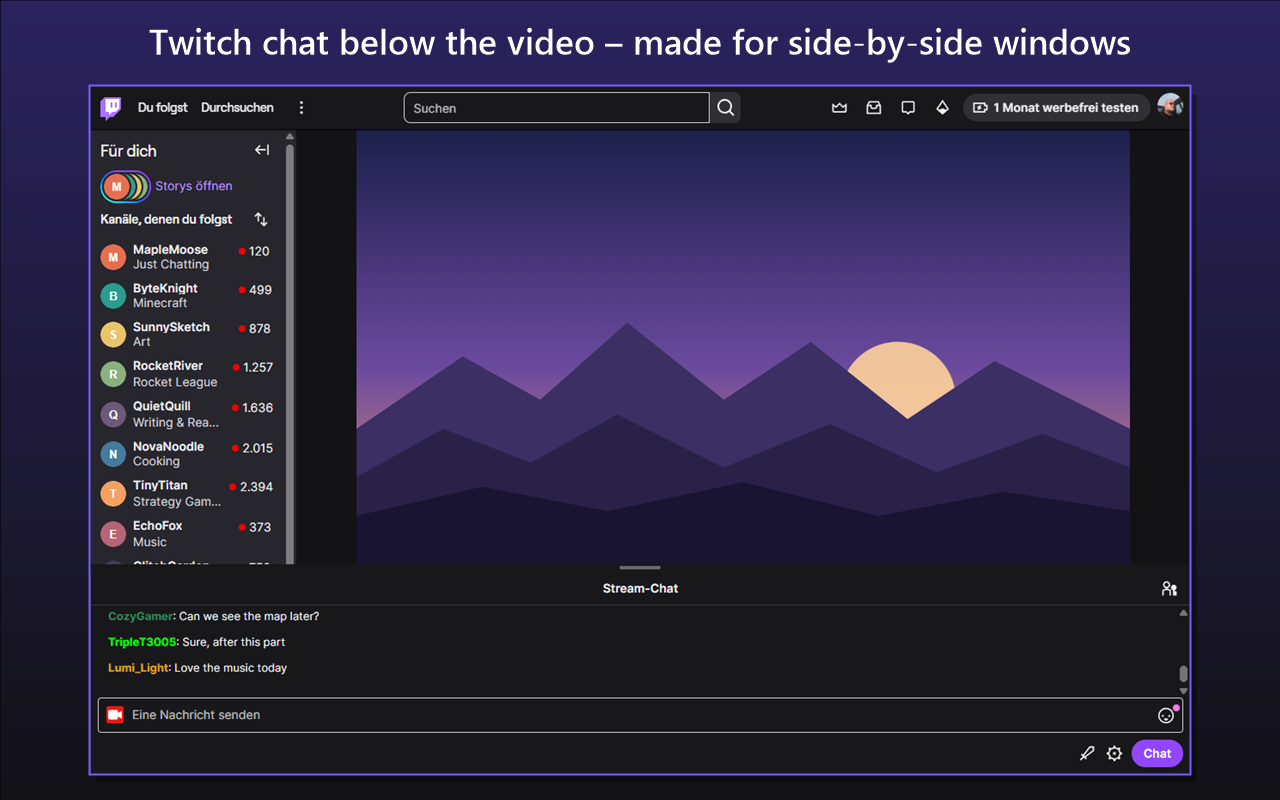
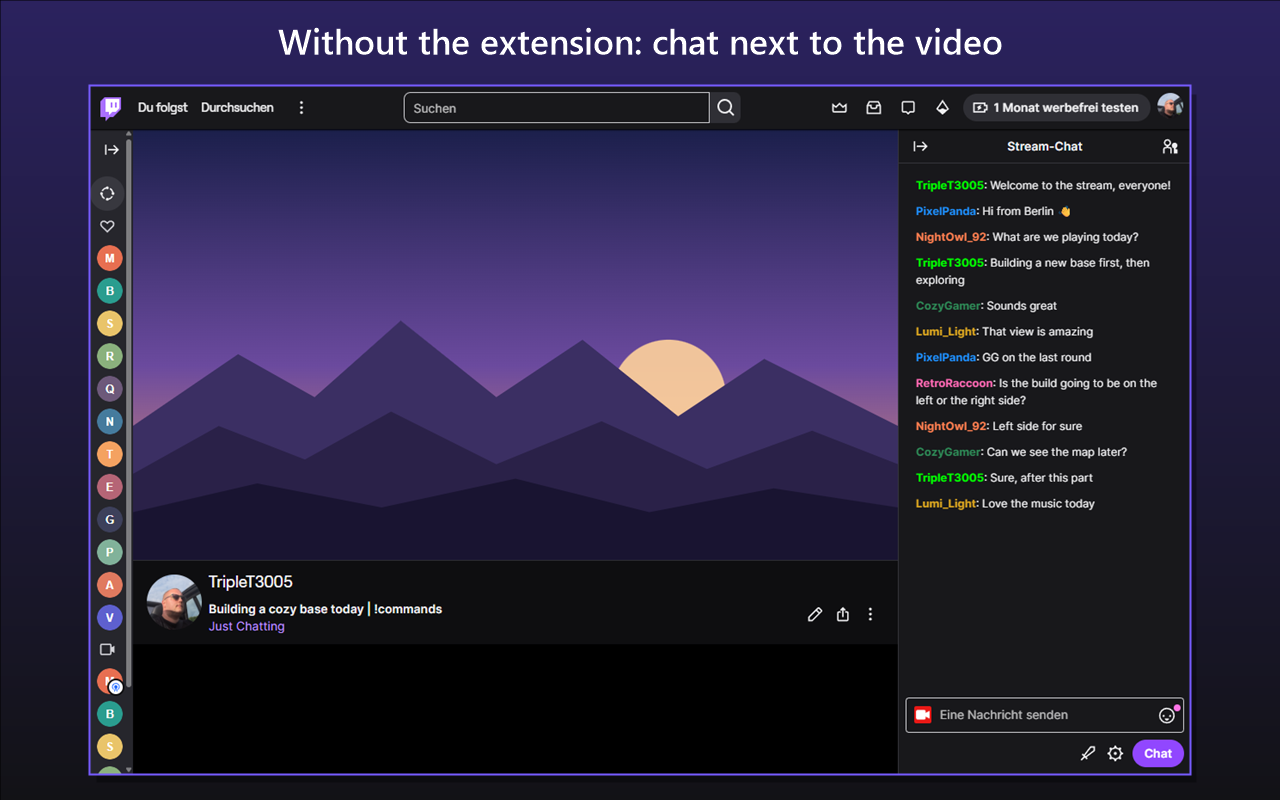
Browser extension for Chrome and Edge that moves the Twitch chat below the video with one click. Useful when the monitor is split into two or three windows side by side.
Feedback and bug reports are welcome as issues. Not affiliated with or endorsed by Twitch. Twitch is a trademark of Twitch Interactive, Inc.
Features
- Toggle via the chat button in the video's control bar (next to settings and fullscreen) or via the extension icon in the browser toolbar
- Optional keyboard shortcut, configurable at
chrome://extensions/shortcuts(Edge:edge://extensions/shortcuts) - The video uses the full window width, the chat fills the space below it (at least 150 px)
- A running hype train is shown compactly in the chat header row
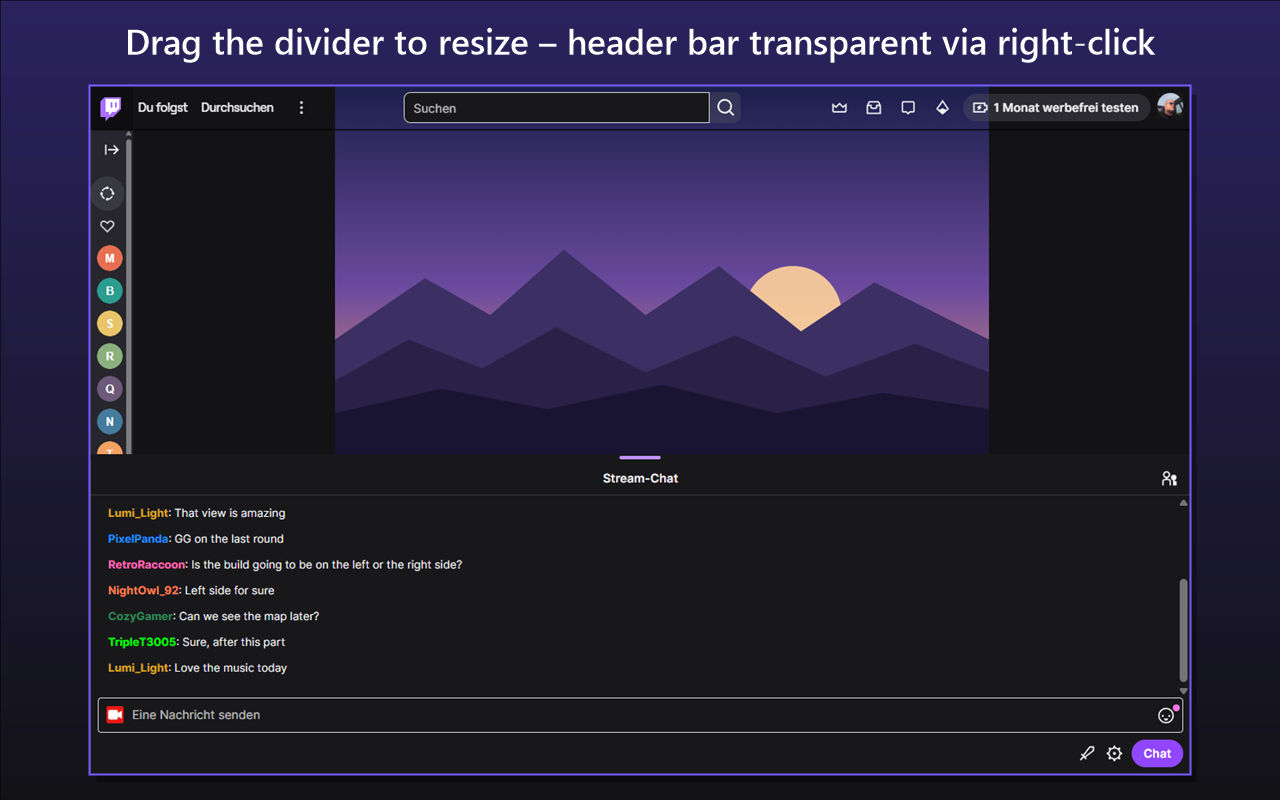
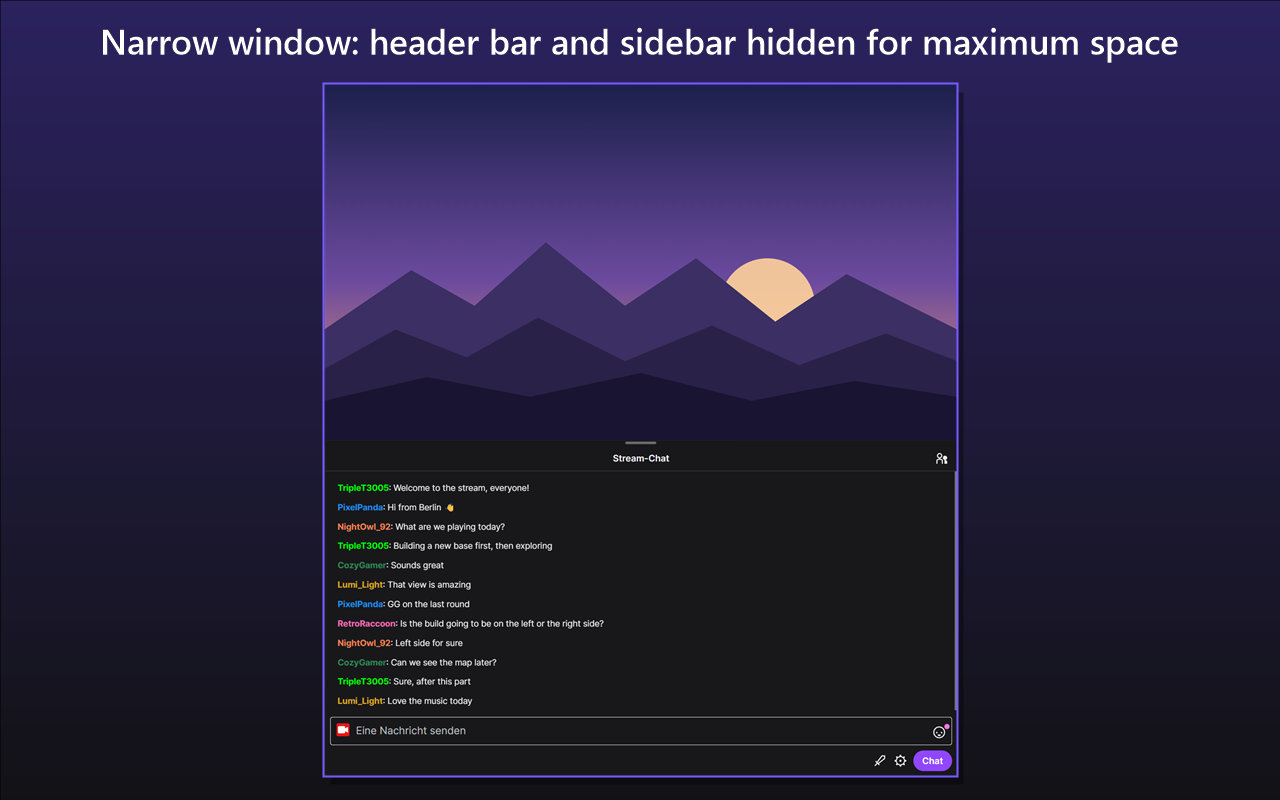
- Right-click the extension icon to hide the header bar or make it transparent, and to hide the left sidebar (applies while the chat is below the video)
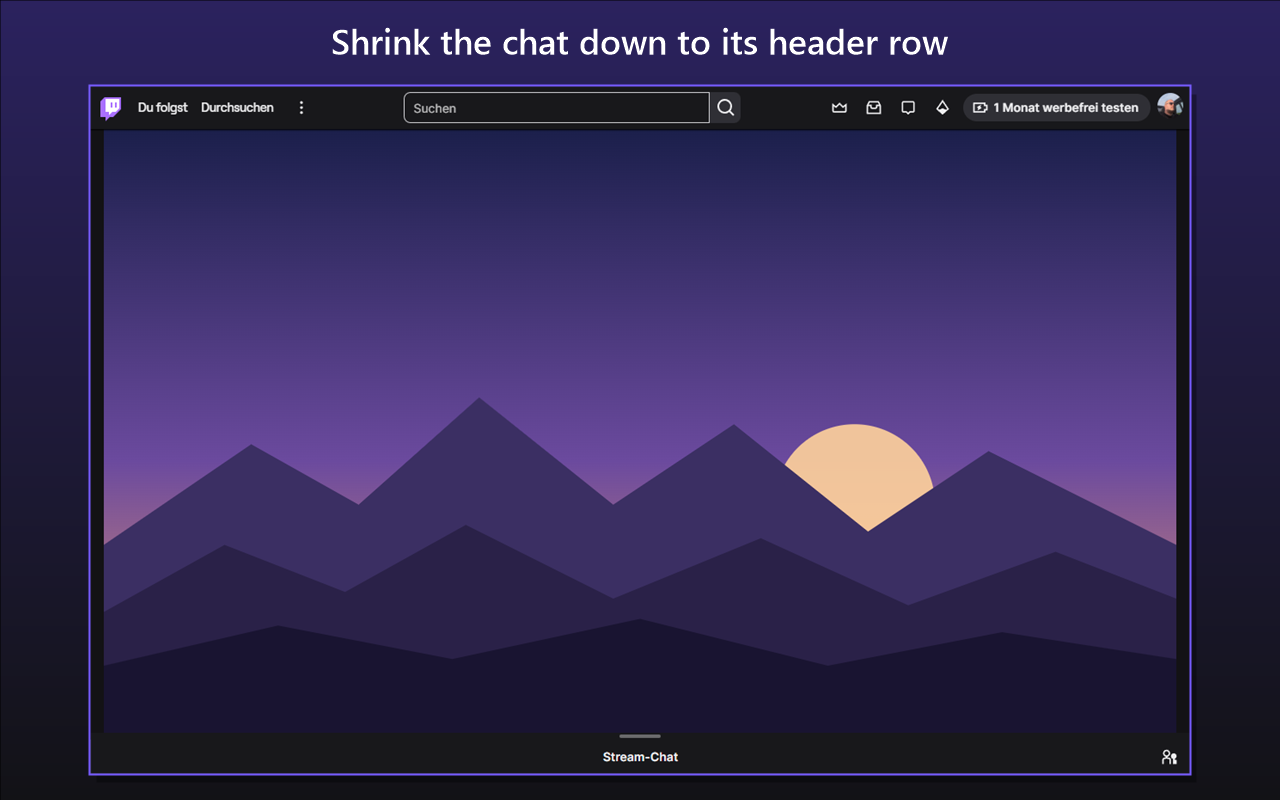
- Drag the line between video and chat to change the split, down to just the chat header; double-click resets it
- Only active on stream pages; fullscreen keeps working, theatre mode is left while the chat is below the video
- The setting is remembered for all Twitch tabs; with browser sync enabled it also applies on your other computers
- Available in English and German, depending on the browser language
Installation
- Chrome: Chrome Web Store
- Edge: Edge Add-ons (coming soon)
Manual install from ZIP:
- Download the latest ZIP from Releases and extract it
- Open
chrome://extensions(Edge:edge://extensions) - Enable "Developer mode"
- Click "Load unpacked" and select the extracted folder
Changes are listed in the changelog.
Usage
- Open a stream on
www.twitch.tv. - Click the chat button in the video's control bar (next to settings and fullscreen) or the extension icon in the browser toolbar. The chat moves below the video; another click moves it back to the right. If the control bar is not available, a floating button "Chat: right" / "Chat: below ✓" is shown instead. The extension icon shows the state: purple with the chat at the bottom while it is on, grey with the chat on the right while it is off.
- Drag the line between video and chat to change the split, down to just the chat header row. Double-click the line to reset it.
- Right-click the extension icon for more options: Header bar → Show, Transparent or Hide, and Hide left sidebar. They apply while the chat is below the video.
The browser suggests the keyboard shortcut Alt+Shift+C for toggling; it can be changed or removed at chrome://extensions/shortcuts (Edge: edge://extensions/shortcuts).
How it works
A content script with a stylesheet runs on www.twitch.tv and adds the chat button to the player. When the layout is turned on and a stream page is open (not in fullscreen), it marks the page with a CSS class: the video is sized to the full width of the page area at 16:9, as far as the space above the chat allows, and the chat column is placed below it with the divider in between. Twitch is a single-page app, so the script watches page changes and the window size and recalculates the layout. While the chat is below the video, theatre mode is left automatically and its button and Alt+T are disabled, because both would break the layout.
A small background service worker handles the extension icon, the keyboard shortcut and the right-click menu. The state is kept in the browser's sync storage; every open Twitch tab reacts to changes there, so all tabs follow the same setting.
Privacy
The extension only changes how Twitch stream pages are laid out. It does not collect, read or send any personal data, has no access to your Twitch account and makes no external requests.
Your settings (chat below on/off, divider position, header bar and sidebar options) are stored with the browser's own storage. With browser sync enabled, your browser syncs them across your devices; the extension itself does not transmit them anywhere.
Permissions: storage to remember the settings, contextMenus for the right-click menu of the icon and access to www.twitch.tv to change the page layout.
License
The extension contains no third-party code; ESLint and Prettier are only used during development. A test in tests/licenses.test.mjs fails if a dependency that ships with the extension uses a license that is not on the allow list.